FAQ
Search
-
What to Do If You Receive a USCIS Request for Evidence (RFE)
What is an RFE?
A Request for Evidence is a notice from USCIS asking for more information before making a decision on your application or petition.
Common Reasons for an RFE
- Missing or incomplete documents
- Conflicting information in your paperwork
- Outdated or invalid evidence
Steps to Respond
- Read the RFE Carefully
- Identify exactly what is being requested.
- Gather the Required Evidence
- Provide only what is asked for, clearly labeled and organized.
- Double-Check and Assemble Your Response
- Include a copy of the RFE notice as a cover sheet.
- Submit Before the Stated Deadline
- Late submissions are generally not accepted.
- Consider Legal Review
- If you’re unsure or the RFE is complex, consult your lawyer. Our firm can review your response to reduce the risk of denial.
Pro-Tip
- Do not ignore an RFE—it could result in the denial of your application.
-
Preparing for Your Immigration Interview
What is an Immigration Interview?
An immigration interview allows an officer to review your application and supporting documents. Most Green Card, citizenship, and some visa applicants must attend an interview.
What to Bring
- Government-issued photo ID (passport, driver’s license, etc.)
- Original documents (birth certificates, marriage certificates, etc.)
- Copies of your application and supporting evidence
- Any USCIS notice or appointment letter
- Additional documents listed in your appointment notice
What to Expect
- Security screening on arrival at the USCIS office or U.S. consulate
- Questions about your application, background, and supporting documents
- Interpreters are allowed if necessary—arrange in advance
Tips for a Successful Interview
- Be honest and concise
- Dress appropriately, as you would for a formal appointment
- Arrive at least 30 minutes early
- Bring a trusted attorney if you have ongoing legal representation
If you need help preparing, contact our firm or consult with your assigned attorney.
-
How to Apply for a U.S. Green Card—Step-By-Step Guide
Overview
Applying for a Green Card (lawful permanent residence) is a major step toward building your life in the United States. Here’s a simplified roadmap to help you understand the process and get started confidently.
Steps to Apply
-
Determine Your Eligibility
- Family-Based, Employment-Based, Refugee/Asylee, Diversity Lottery, and more.
- Your situation will determine the correct process.
-
File the Correct Petition
- Usually, a sponsor (family member or employer) files a petition with U.S. Citizenship and Immigration Services (USCIS), e.g., Form I-130 or I-140.
- See your specific eligibility category for details.
-
Wait for a Decision on the Petition
- Check processing times here.
-
Submit Your Green Card Application
- If you’re in the U.S., file Form I-485 (Adjustment of Status).
- If abroad, follow the Consular Processing route.
-
Attend Biometrics Appointment
- You’ll be scheduled to provide fingerprints, photos, and a signature.
-
Interview (if required)
- Most applicants must attend a USCIS interview. Bring all requested documents.
-
Receive a Decision
- You will be notified by mail of the outcome.
Tips
- Always use the latest forms from the USCIS website.
- Follow instructions exactly and submit supporting documentation.
- Keep copies of everything for your own records.
-
Determine Your Eligibility
-
How do I publish my content in other languages?
If you have configured your Help Center to support multiple languages, you can publish content in your supported languages.
Here's the workflow for localizing your Help Center content into other languages:
- Get your content translated in the other languages.
- Configure the Help Center to support all your languages.
- Add the translated content to the Help Center.
For complete instructions, see Localizing the Help Center.
-
How can agents leverage knowledge to help customers?
You can use our Knowledge Capture app to leverage your team’s collective knowledge.
Using the app, agents can:
- Search the Help Center without leaving the ticket
- Insert links to relevant Help Center articles in ticket comments
- Add inline feedback to existing articles that need updates
- Create new articles while answering tickets using a pre-defined template
Agents never have to leave the ticket interface to share, flag, or create knowledge, so they can help the customer, while also improving your self-service offerings for other customers.
To get started, see our Knowledge Capture documentation.
And before your agents can start creating new knowledge directly from tickets, you’ll need to create a template for them to use. To help you along, we’ve provided some template ideas below. You can copy and paste any sample template below into a new article, add the KCTemplate label to the article, and you’ll be all set.
Q&A template:
[Title]
Question
write the question here.Answer
write the answer here.Solution template:
[Title]
Symptoms
write the symptoms here.Resolution
write the resolution here.Cause
write the cause here.How-to template:
[Title]
Objective
write the purpose or task here.Procedure
write the steps here. -
How do I customize my Help Center?
You can modify the look and feel of your Help Center by changing colors and fonts. See Branding your Help Center to learn how.
You can also change the design of your Help Center. If you're comfortable working with page code, you can dig in to the site's HTML, CSS, and Javascript to customize your theme. To get started, see Customizing the Help Center.
-
What are these sections and articles doing here?
This FAQ is a section in the General category of your help center knowledge base. We created this category and a few common sections to help you get started with your Help Center.
The knowledge base in the Help Center consists of three main page types: category pages, section pages, and articles. Here's the structure:
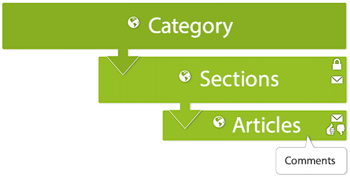
You can create your own categories, sections, and articles and modify or completely delete ours. See the Organizing knowledge base content and Creating articles in the Help Center to learn how.
